
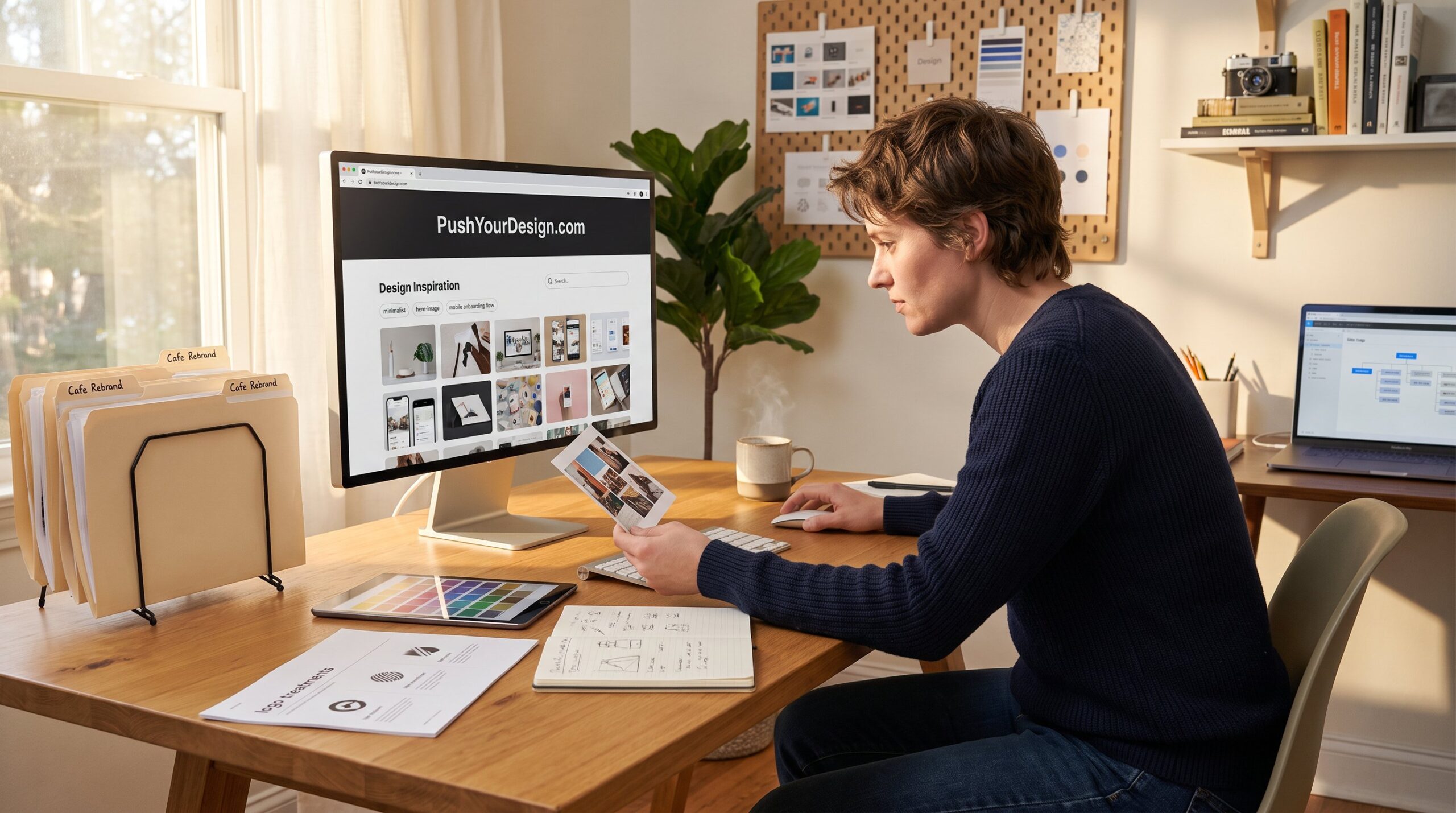
How to Find Design Inspiration on PushYourDesign.com is a hands-on roadmap for designers who need fast, practical ideas. The site bundles galleries, tutorials, trend notes, and templates so they can turn an eye-catching example into a real deliverable. This guide shows where to look, how to search, and how to keep inspiration organized so a concept becomes a usable design, without wasting hours chasing vague image boards.
Table of Contents
ToggleKey Takeaways
- PushYourDesign.com offers targeted design inspiration by combining galleries, tutorials, and templates tailored for graphic, web, and interior projects.
- Efficient navigation through categories, tags, and the search bar helps quickly find relevant designs like UI elements or branding styles.
- Filtering results by content type, date, and keywords ensures access to up-to-date and compatible resources, especially for modern UI and social graphics.
- Organizing inspiration into project-specific folders with reference types and execution notes streamlines collaboration and design execution.
- Adapting design examples to project constraints involves analyzing and customizing components such as layout, color, and typography using site tutorials to maintain quality and compliance.
- Using PushYourDesign.com effectively accelerates the process from concept to deliverable by offering curated resources and practical how-to guides in one place.
Why Use PushYourDesign For Design Inspiration
PushYourDesign serves targeted inspiration rather than random imagery. It groups case studies, step-by-step tutorials, and asset packs for graphic, web, and interior projects so designers can move from idea to execution. For example, a branding brief that needs a bold typographic voice can point a designer straight to articles on typography and branding case studies. That practical coupling, visual example plus how-to, cuts exploratory time.
PushYourDesign also covers multiple disciplines in one place: UI/UX, logos, interiors, and trend analysis. A freelance designer tested the site and found 12 usable mood-board items in 30 minutes for a hospitality brand, color palettes, hero image crops, and a suggested font pairing. That kind of yield matters when deadlines are tight.
Designers who want a broad resource library should start with the site’s curated hubs. The site’s pillar overview explains the breadth of resources and shows how pieces connect to tutorials and templates. Read the overview when planning a project to understand which sections will supply visuals, code snippets, or layout templates: creative design resources.
Navigate Categories, Tags, And Search Efficiently
Start with the clear answer: use categories, tags, and the search bar in sequence. First, pick a top-level category (Design, Interior Design, or Latest Trends) to narrow scope. Second, scan tags inside that category to find style cues like “minimalist”, “retro”, or “mobile UI.” Finally, use precise search phrases to pull together tutorials, galleries, and case studies.
Categories act like folders. If a designer needs web layout ideas, choosing the Design category immediately removes unrelated interior articles. Tags refine that selection: a post tagged “dashboard” and “data viz” will surface UI-specific examples. This layered approach finds more useful results faster than browsing a single gallery.
Two practical habits speed discovery: save a short list of 4–6 tags you reuse for projects (e.g., hero-image, responsive-grid, serif-branding) and open search results in tabs to compare templates. When timelines are short, this simple workflow reduces scrolling by roughly half compared with unguided browsing.
Use The Search Bar And Site Map Strategically
Direct answer: type specific needs into the search bar and follow the site map for structural navigation. Searching for “mobile onboarding flow” returns tutorials, example screens, and UX advice in the same result set. The search indexes article copy and tags, so include terms like platform, device, or interaction to narrow results.
Use the site map when the search yields too many mixed types. The site map shows content grouped by tutorials, galleries, and trend analyses, letting a designer jump straight to the content format they prefer. For example, when building a logo, the designer can move from a logo gallery to tool guides that explain vector workflows.
Tip: combine search with date filters (see next subsection) to prioritize modern UI patterns or recent interior trends. That keeps decisions grounded in current practice instead of stale templates.
Filter By Content Type, Date, And Keywords
Core advice: filter results by article type and recency to surface relevant, implementable examples. Start by choosing the content type, tutorial, case study, gallery, or template, because each serves a different stage of work. Tutorials help replicate layouts: galleries provide rapid visual options: case studies reveal rationale and constraints.
Next, set a date filter to the last 18 months for trend-driven work like UI or social graphics. A recent search for micro-interactions returned three tutorial-guided examples published within the past year that matched modern interaction patterns. That matters: a UI pattern from 2016 often misaligns with 2026 accessibility and mobile defaults.
Finally, add keyword filters for file types or tools if they matter, e.g., “Figma”, “SVG”, “photoshop”, to ensure assets or instructions map to the designer’s stack. That precise filtering saves rebuild time and prevents chasing assets that require incompatible software.
Curate, Save, And Organize Inspiration For Any Project
Quick answer: save selectively and organize by project-specific folders. A practical system contains three layers: project folder, reference types, and execution notes. Project folder holds all links and images for a client. Reference types divide visuals into layout, color, typography, and interactions. Execution notes record why a reference matters and which elements to reuse.
A working example: for a cafe rebrand, create a “Cafe Rebrand” folder and add four subfolders: hero photography, palette swatches, logo treatments, and social templates. Save article links and screenshots from PushYourDesign into those subfolders. Use short notes like “use serif for warmth: scale heading at 48px” so a contractor or junior designer can pick up the brief quickly.
Tools: browser bookmarks organized into folders, a simple Notion board, or a lightweight mood board app each work. PushYourDesign’s galleries and downloadable templates pair well with this system: combine saved resources with a local style tile and a one-page brief. Also consider linking to topic guides on the site, such as a short primer on typography decisions: typography guide.
Adapt Found Designs To Your Constraints: Practical Steps
Direct insight: translate visible patterns into constraints-driven decisions. First, identify components to adapt: layout, color, typography, imagery, and interactions. For each component, note the constraint it must meet, brand colors, platform dimensions, accessibility thresholds, or file-size limits.
Step example: a designer finds a 3-column product grid on PushYourDesign and needs it on mobile. They measure relative column widths and spacing visually, then recreate a responsive grid in Figma using a 12-column system and convert images to optimized WebP to meet performance budgets. If licensing or asset sources are unclear, use the site’s tutorials for rebuilding visuals from scratch to avoid copyright issues.
Use site resources when a technical gap appears. If the adaptation requires interaction coding, the designer can consult the UI/UX primer for pattern basics: UI and UX primer. For color decisions, reference a step-by-step palette guide before finalizing contrast ratios: color palette guide. These targeted references make adaptation concrete and auditable during reviews.
Conclusion
PushYourDesign equips designers with curated visuals, step-by-step tutorials, and templates that accelerate idea-to-product work. By using categories, tags, and precise search: saving references into project folders: and adapting examples to constraints, designers turn inspiration into deliverables. The site’s resource hubs and how-to articles make it straightforward to pick up the right pattern, rebuild it in the preferred tool, and ship with confidence. For active inspiration and resource connections across disciplines, PushYourDesign remains a practical hub designers can rely on.